

This page describes the new analytics dashboard, which is rolling out to all accounts.
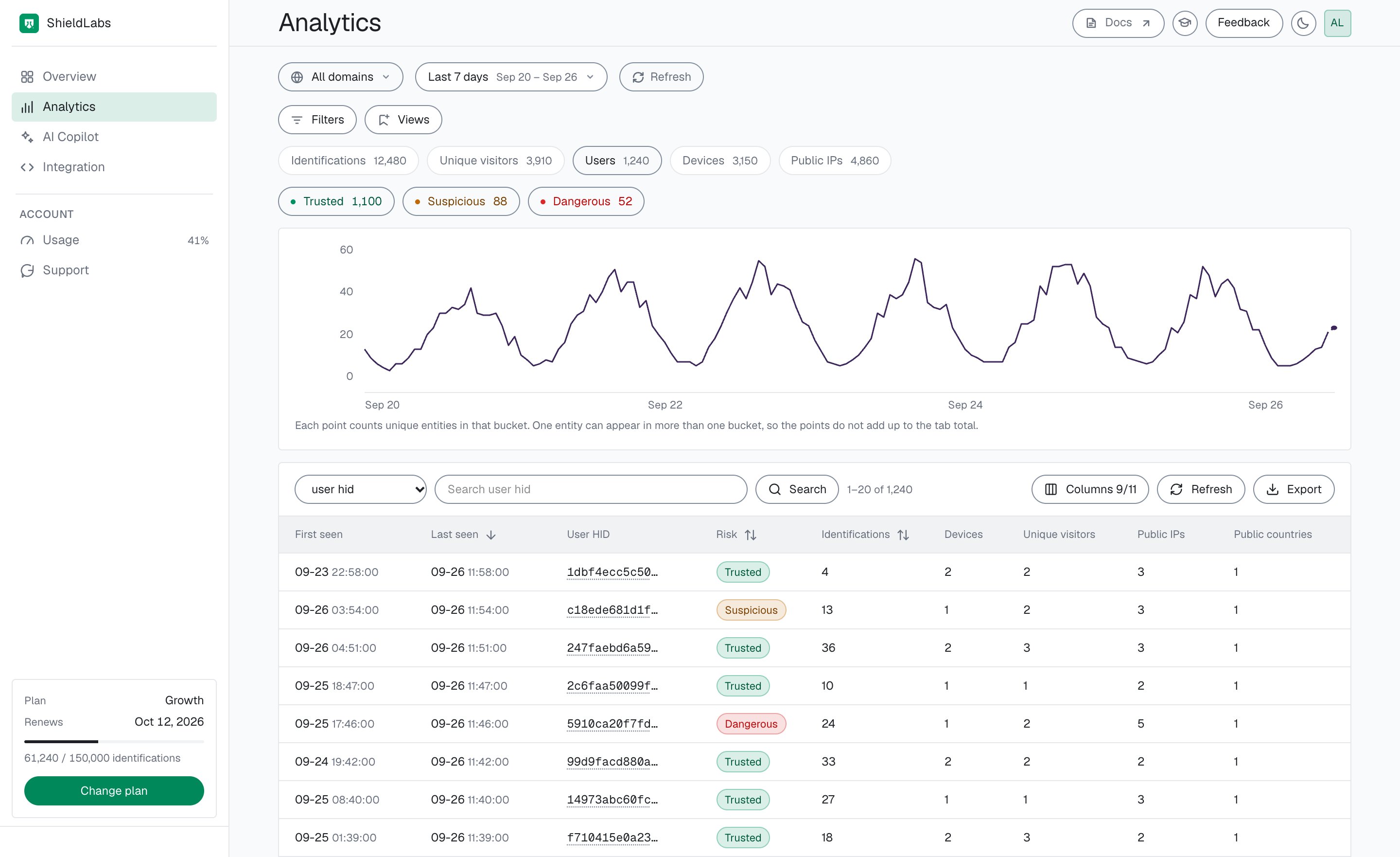
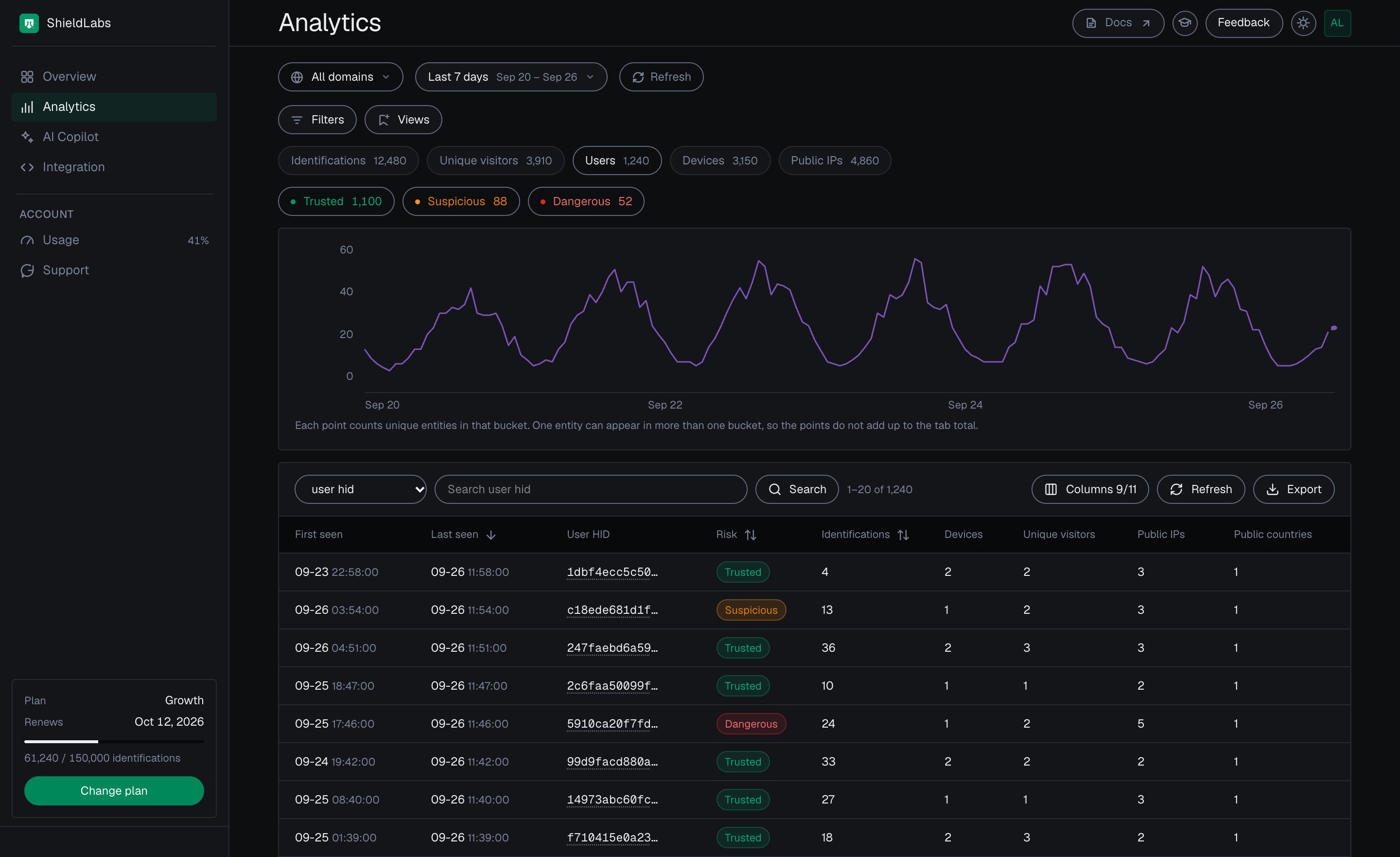
Analytics in the analytics dashboard, Users tab: each user with its band for the period, its identifications, devices, unique visitors and public IPs.
Five tabs
On screen the tabs read Identifications, Unique visitors, Users, Devices and Public IPs, each with its count for the period. For account-level review, start on Users.
A user, device, visitor or public IP carries the worst band of its identifications in the selected period; only an identification has a numeric Risk Score. Local IPs appear as the optional Local IP column of the Identifications tab (add it with Columns) and as linked local IPs on each card, with the identifications behind each. Users, devices, visitors and IPs explains how the identities link.
Band filters
The pills Trusted, Suspicious and Dangerous show how many rows of the tab fall in each band. Select one or more to filter the table and the chart. On the Identifications tab they filter by each identification’s own Risk Score. On an identity tab they filter by the worst band in the period, so Dangerous on the Users tab lists every user with at least one Dangerous identification in the period.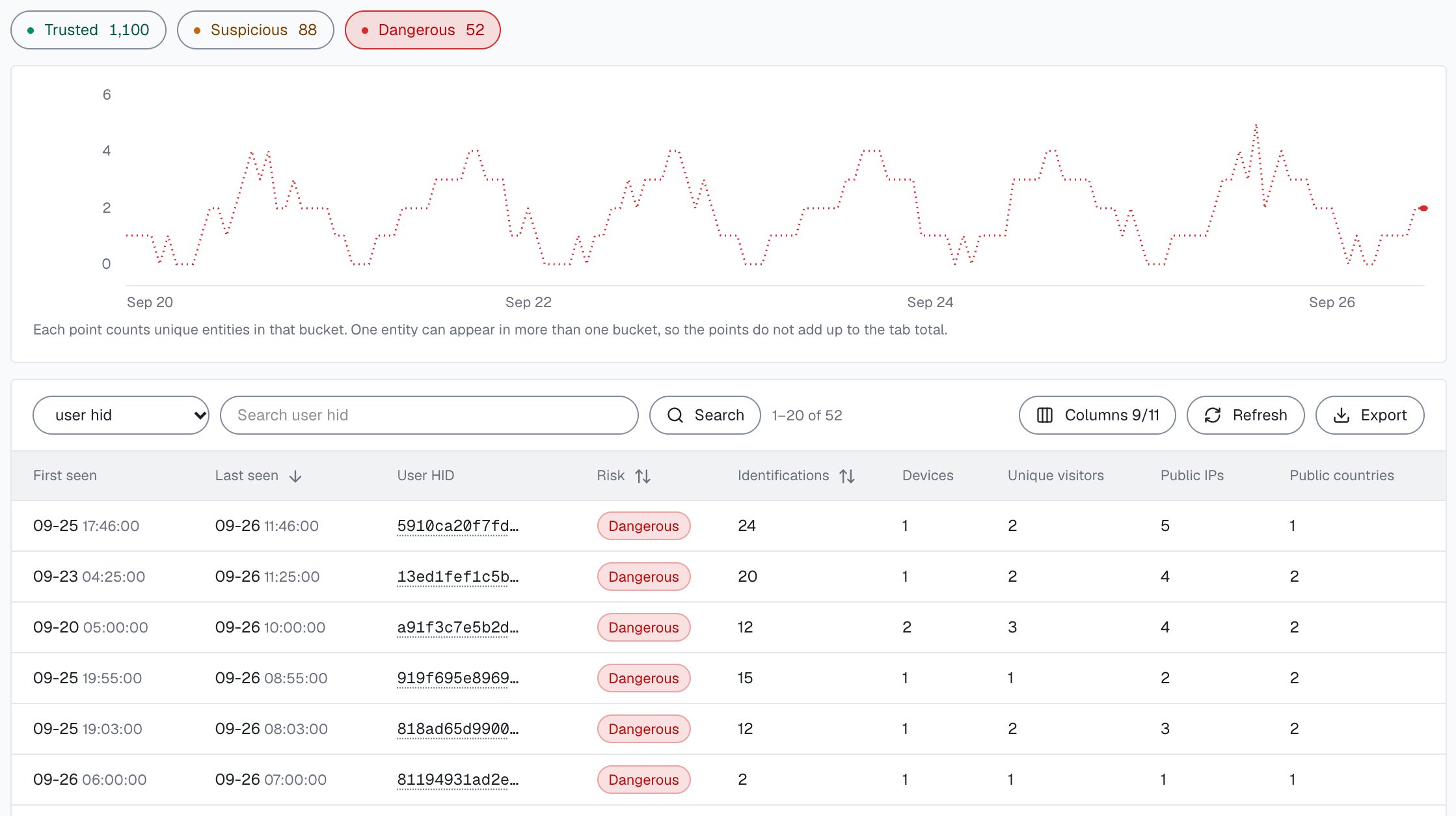
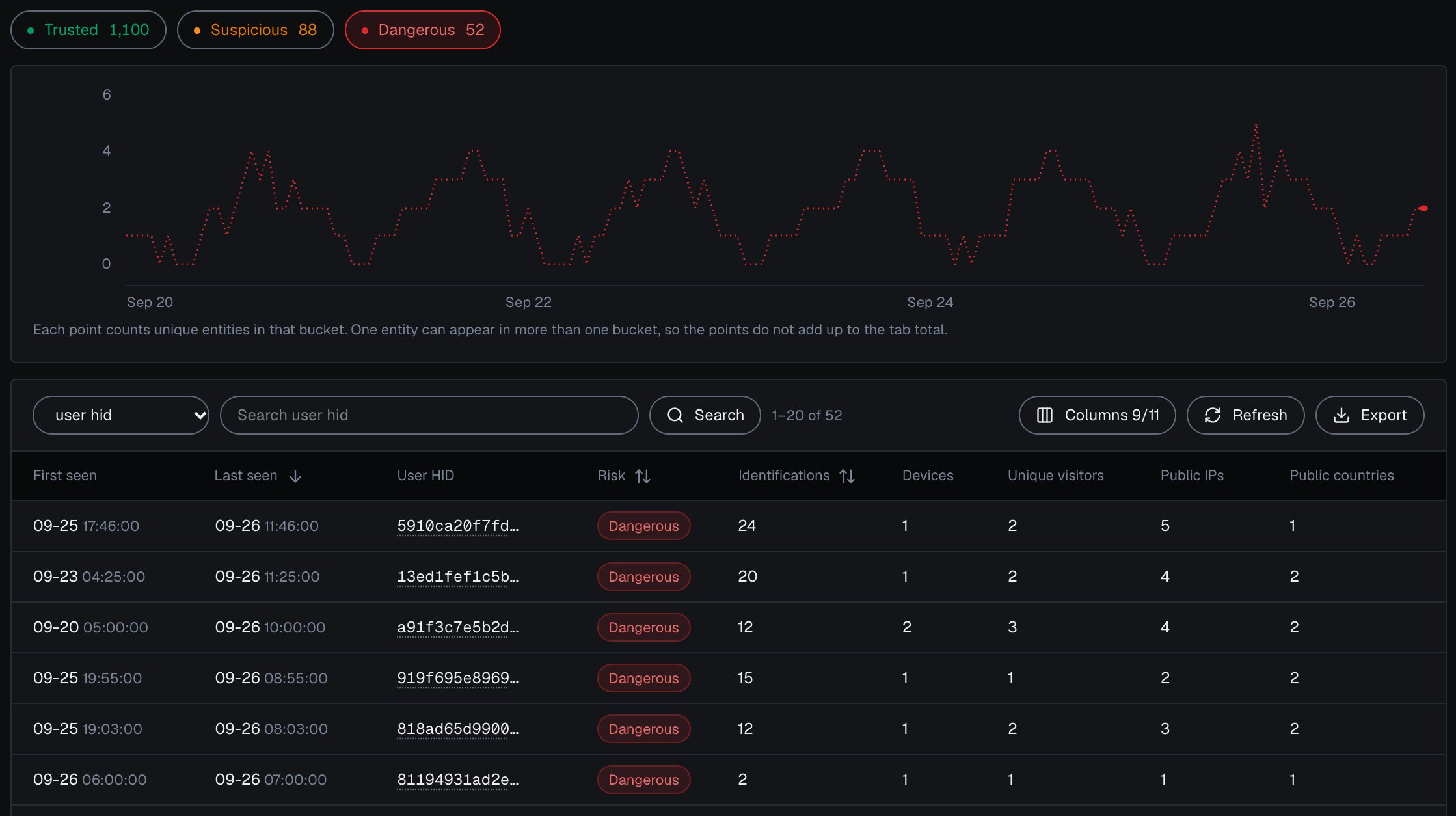
Dangerous users in the analytics dashboard, each with its identifications, devices, unique visitors and public IPs.
The chart
The chart shows how the selected tab moved over the period. Its bucket size follows the length of the period. On an identity tab each point counts the unique users, devices, visitors or IPs seen in that bucket, so the points do not add up to the tab’s total. Active filters sit on the chart card as chips. Each chip shows its filter as field and value, such ascampaign:spring_promo, with its count; a High-Risk Events chip shows no count. Remove one with its close button, or clear them all at once.
Filters
Filters opens the list of fields on the left and their values on the right. Pick values, then select Done to apply them, or Reset all to start over. The fields are High-Risk Events, Country, Browser, OS, Device type, Connection type, Domain, Channel, Source, Campaign, Entry page and Risk signals. The High-Risk Events field filters to one or more of the four events: Multi-accounting, Account sharing, Impossible travel and Account takeover. While this filter is active, a note shows when High-Risk Events were last evaluated.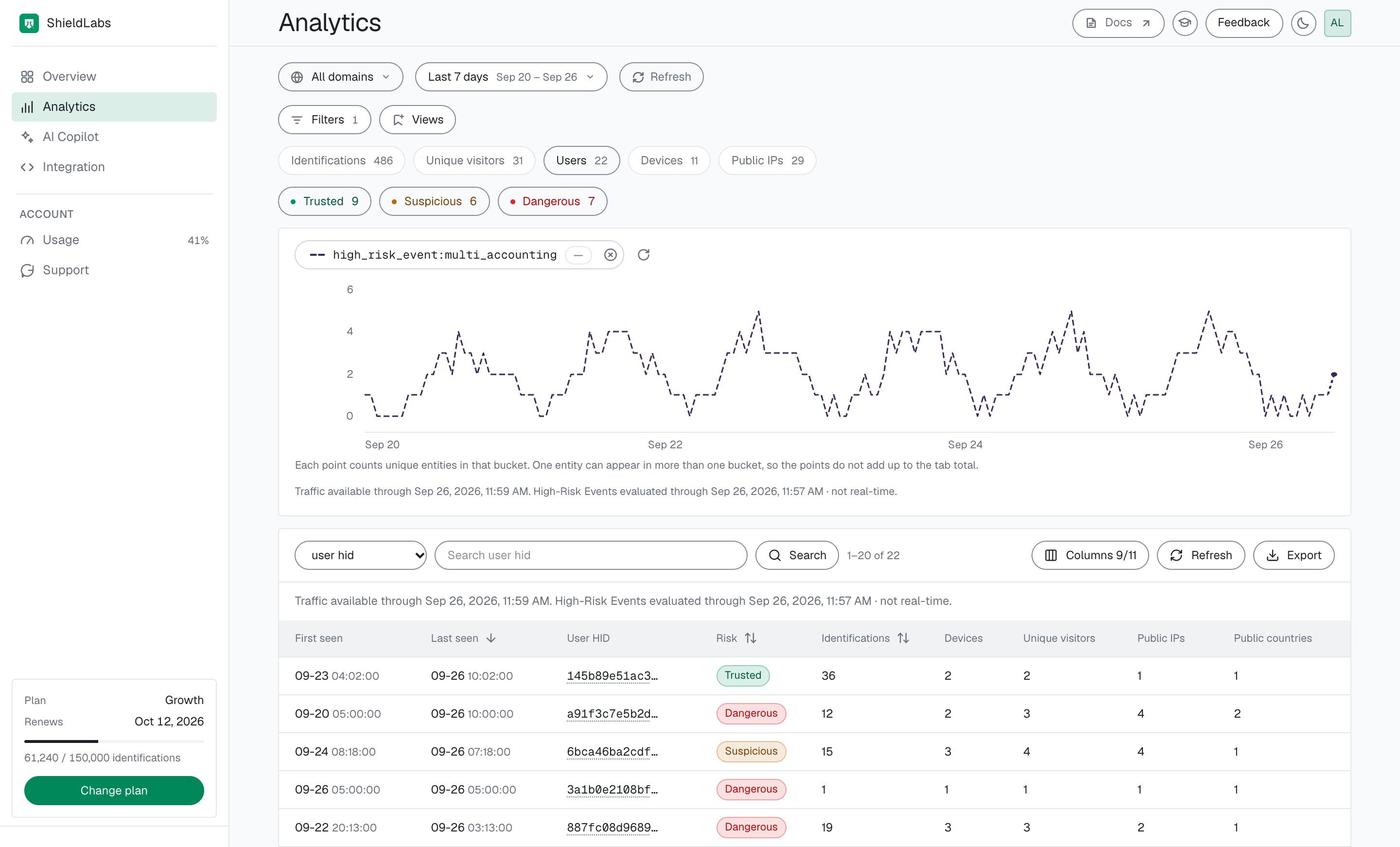
Users with a Multi-accounting event in the analytics dashboard.
Saved views
Views keeps the filter combinations you use often. Name the current filters and select Save current view. A saved view can then be applied with Apply, renamed with Rename, replaced by the current filters with Update, or removed with Delete. Saved views are stored with your login, so they follow you to any browser you sign in from.The table
On the Users, Devices, Unique visitors and Public IPs tabs the columns are First seen, Last seen, the identifier, Risk (the band), Identifications, and how many users, devices, unique visitors, public IPs and public countries are linked to it. A tab leaves out its own count, so the Users tab has no Users column. On the Identifications tab the columns include Date, Identification (the request ID), Visitor ID, Device ID, User HID, Risk Score, Risk signals, Public IP and Country. Columns adds Local IP, Local country, Session ID, Cookie ID, Browser, OS, Device type, Connection type, Domain and the traffic source fields: Channel, Referrer Domain, Campaign, Entry page and the UTM parameters. The High-Risk Events, Device risk, Visitor risk, User risk and IP risk columns are on by default and show a dash in the table; read the user’s High-Risk Events and the risk of the user, device, visitor and IP behind each identification on the identification card and the user card, or clear those columns in Columns. On the identity tabs, the High-Risk Events and Risk signals columns show a dash as well. The Risk signals column of the Identifications tab also names informational flags such as Incognito, which add nothing to the Risk Score. Search finds one identifier. On an identity tab, search by that tab’s own identifier. On the Identifications tab, leave the field on auto or pick one: request ID, Visitor ID, Device ID, User HID, Cookie ID, Session ID or IP. Refresh reloads the first page with the latest data.Export
Export downloads a CSV of every identification in the current filter, not only the page on screen. On an identity tab the export still holds identifications, one row each. An export covers up to 10,000 identifications; for a larger selection, narrow the period or add a filter. Exporting uses none of your included identifications.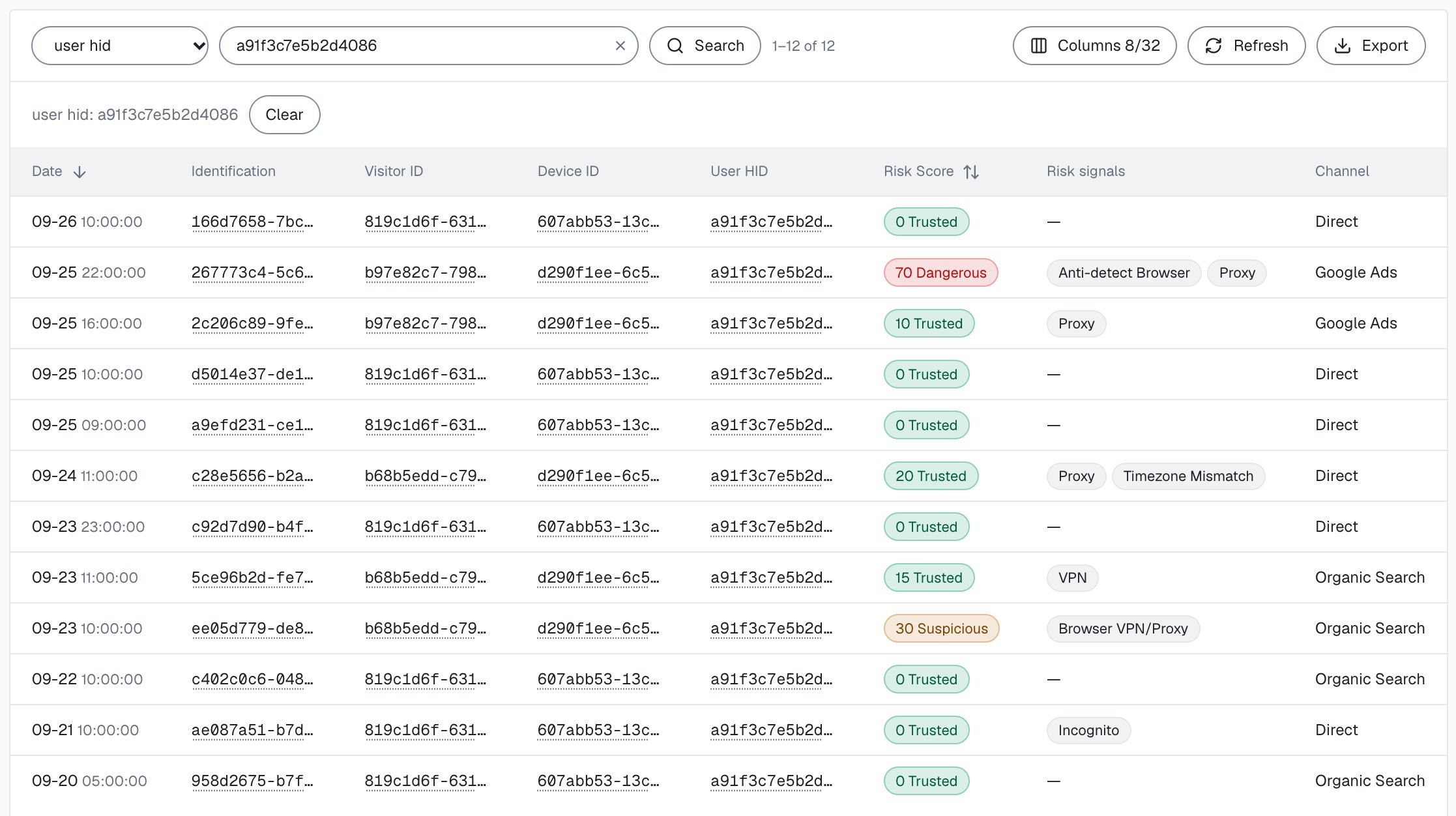
One account's identifications in the analytics dashboard, ready to export to CSV.
Open a row
Select the request ID in the Identification column to open that identification card. Select a User HID, Device ID, Visitor ID or Public IP anywhere in the table to open that identity’s card. On an identity tab, the identifier in each row opens its card.Next steps
User and device cards
One account with its band, its High-Risk Events and everything linked to it.
Identification card
The Risk Score and weighted risk signals of one identification.
Investigate a risky user
From the Overview to one user card and an action in your backend.
High-Risk Events
The four events detected on your users, at Medium or High confidence.
Risk signals
Every risk signal you can filter by, with its weight.
Read one account in code
Every identification of one account through the History API, by
user_hid.